
PARAMOUNT+
2023
Setting Foundations: Designing the TV Video Player for Paramount+
Paramount+ is a streaming service providing users with nonstop content, ranging from Hollywood classics to live sports like UEFA Champions League. Despite their consistent subscriber growth since launch, they still used legacy designs for the video player from CBS All Access (their predecessor app). I was the sole designer for this redesign initiative, leading its design from inception to launch across 4 OTT platforms.
Role
Product Designer
Timeline
Nov 2022 - Jun 2023
Launched Oct 2023
Platforms
INTRODUCTION
Why redesign the video player?
Desired features from our subscribers
As Paramount+ grew in subscriber numbers, the Live & Video team (the Product team I was on) looked to implement more features that were requested from our user base. The UX Research team uncovered feedback from our subscribers, who desired enhanced playback shortcuts like a “Next Episode” button. We also heard from our sports fans — who tend to be power-users of the video player — who desired sports-related features like a “Start from Beginning" button that can jump them straight to the start of a live stream.
The business requirement
The business looked at the video player as an untapped surface for recommending content. The video player was the screen users spent majority of their time in the app — and a key conversion metric was "minutes watched." Keeping users engaged in video content was central goal. This led to their ask: bring the ability to browse recommendations like on our Homepage, but right in the player interface.
PROBLEM
A number of roadblocks persisted
Problem #1 —
The current video player was ported over from CBS All Access, our legacy streaming app. All 4 directional D-pad controls were already mapped to existing patterns. When we tried to implement a button shortcut using a directional button, the current mapping prevented us from doing so.
The old video player for VOD streams.
The old video player for sports streams on Live TV.
Problem #2 —
The video player looked and behaved differently across VOD, Live TV, and Live Sports. VOD displayed your typical DVR controls, but Live TV removes the scrubber bar due to its “On Now” nature. Yet, the scrubber bar then reappears for Live Sports, but at what we called the "Live Edge," which doesn't show the user's relative progress.

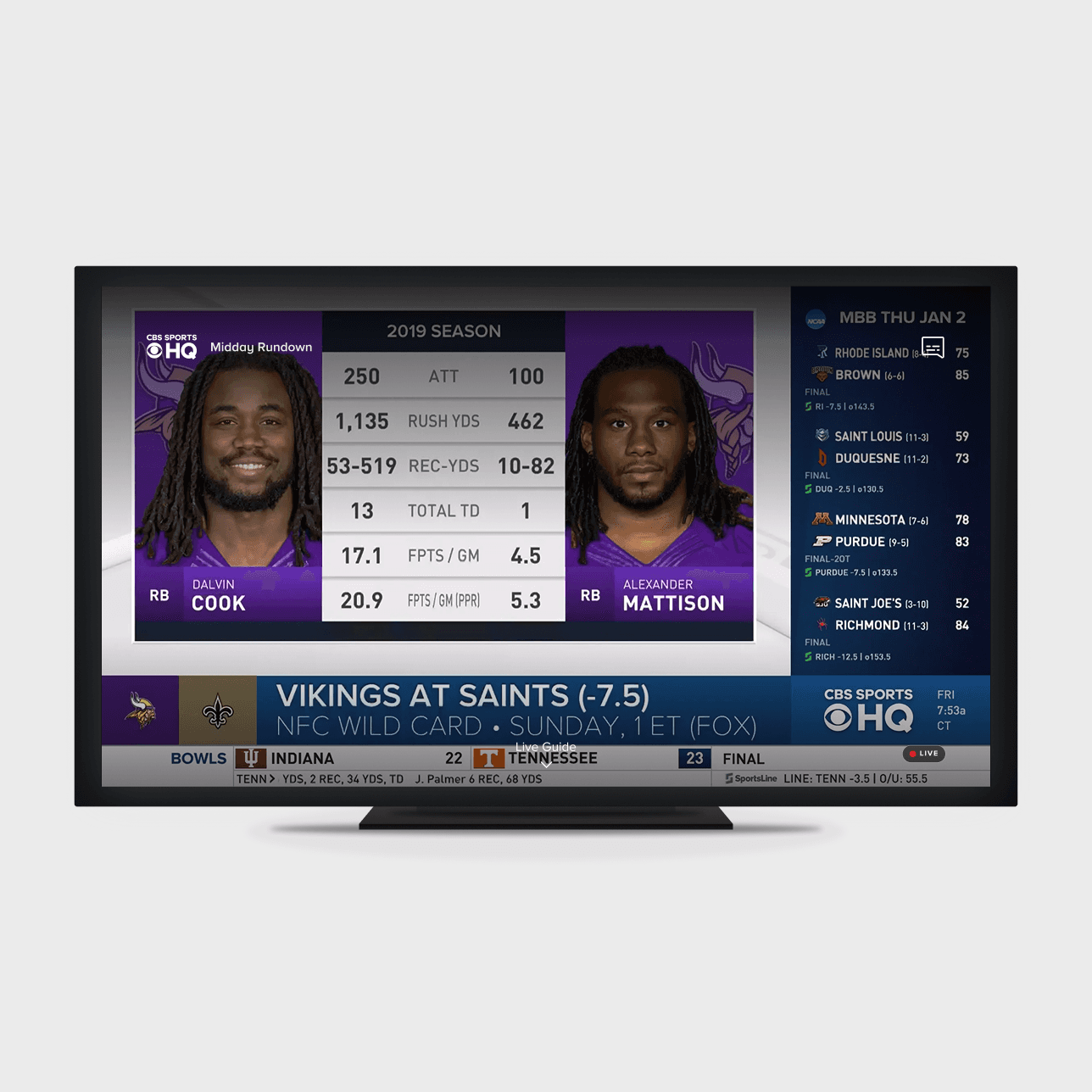
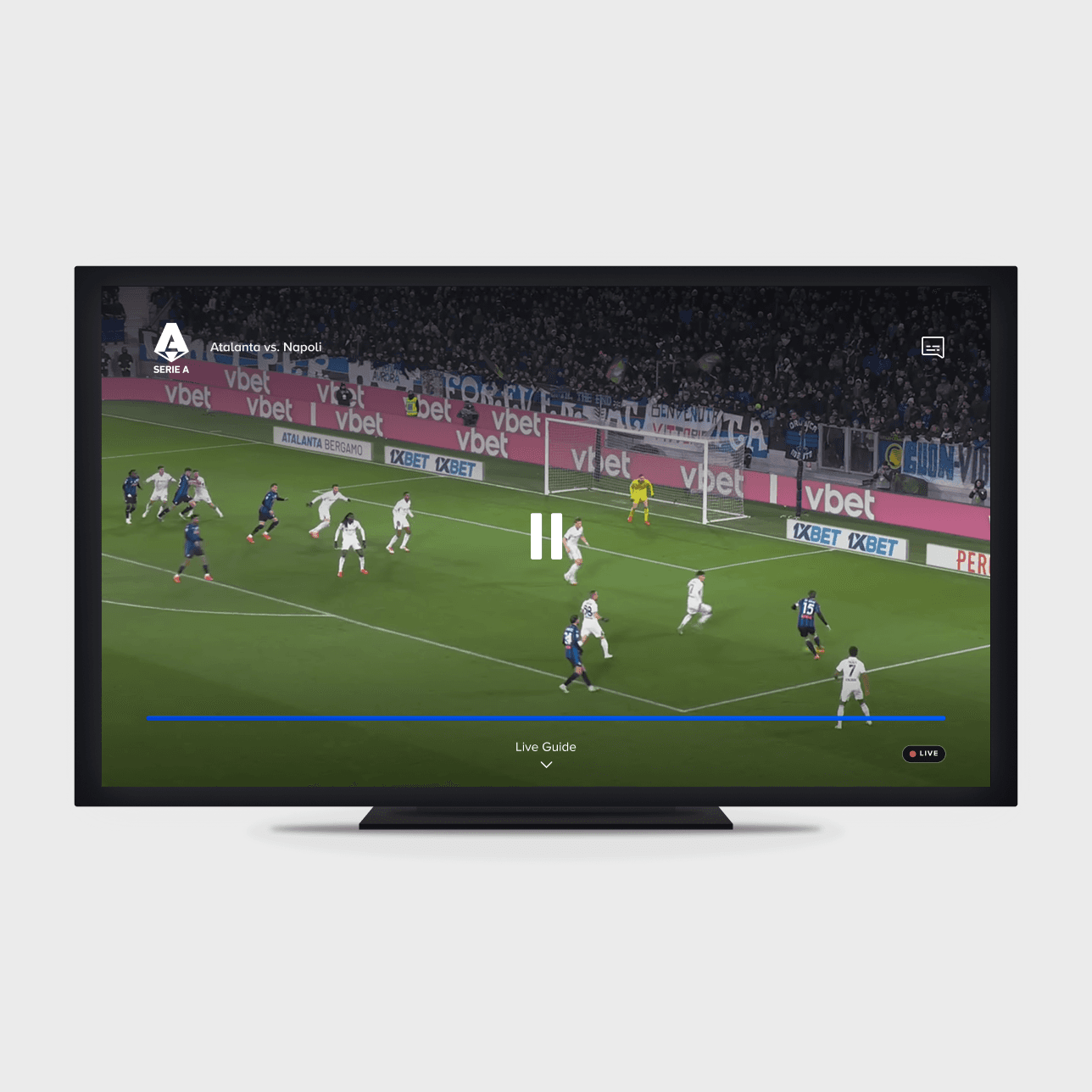
The old video player across VOD, Live, and Live Sports.
Problem #3 —
This lead to our final issue: the VOD and Live TV players used different codebases. This meant developers had to build out a new feature twice if it appeared for both VOD and Live TV. We needed a unified codebase to continue releasing features at Product’s desired pace.
SOLUTION
Solutions for user & business needs
Solution #1 — Consolidated controls to the bottom region of the TV screen
The old video player had UI elements scattered across all four corners of the TV screen. I consolidated all of those elements and brought them to the lower half of the screen, so the user can simply scan one region for their desired action.

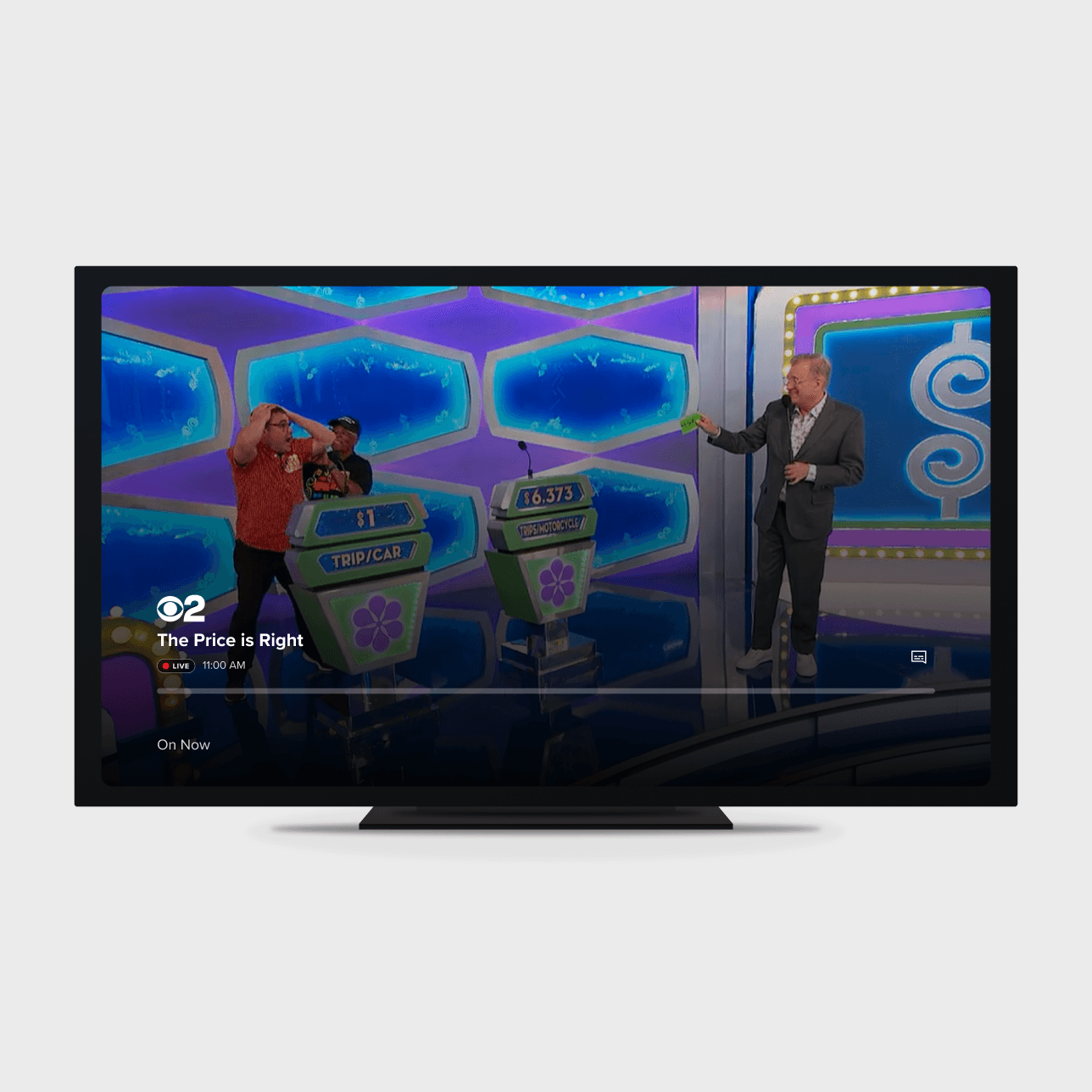
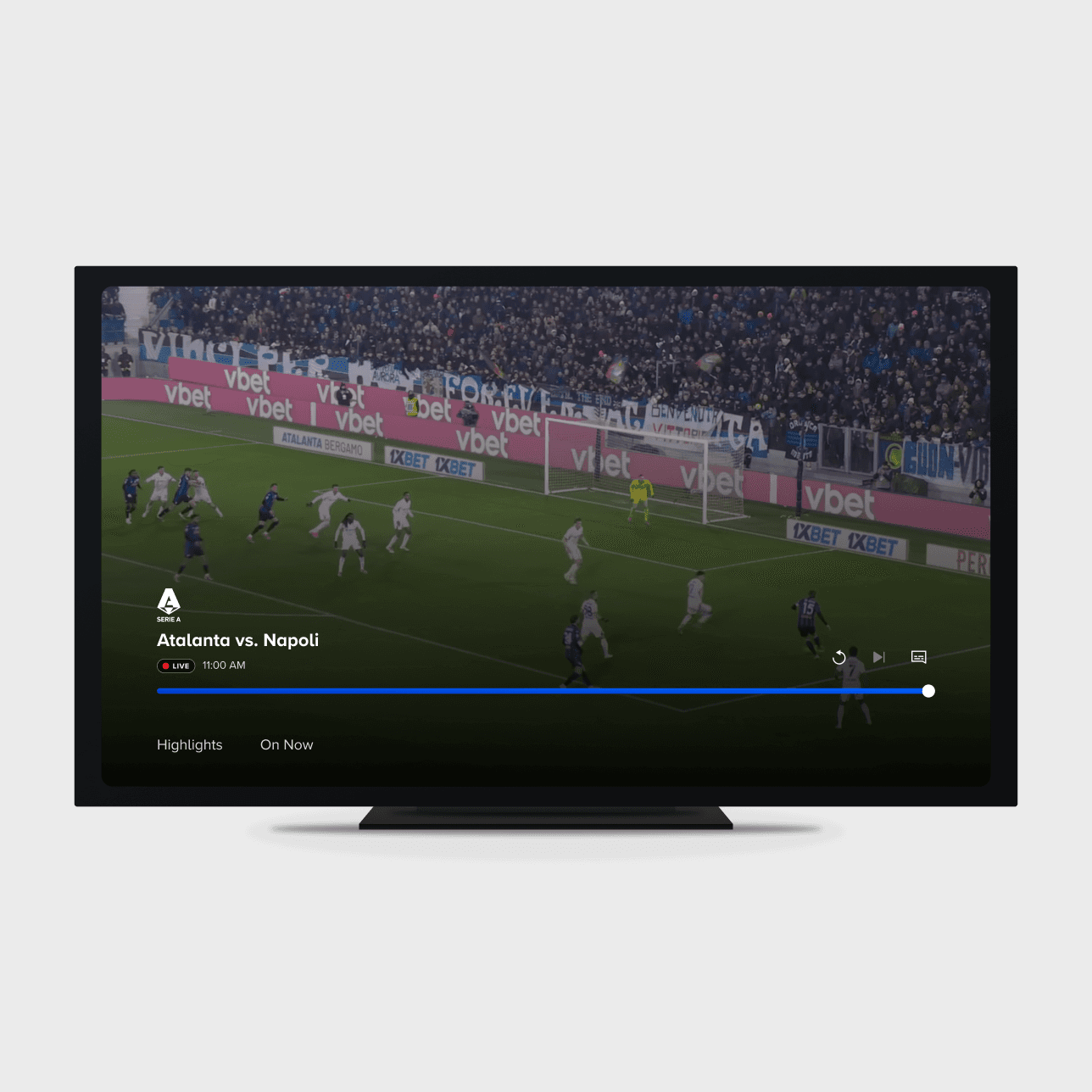
The redesigned video player across VOD, Live, and Live Sports.
Solution #2 — Increased legibility of focus states
The old video player had two focus states: filled for focus, and unfilled when unhovered. As more features roll in, icons can get vague — so I brought helper text in when hovered. A while circle fill was added to further emphasize what’s hovered.
Solution #3 — Increased thickness, sizing, and contrast for visibility from a 10-ft view
Our old video player had text that was too small, and gradient colors that were a touch too light. I increased the text size to improve readability from afar, and added a stronger gradient to increase contrast of the UI against video.
Solution #4 — Added ability to browse content with one click down
I added a simple signal to surface content within the video player — tabs named after their respective categories, placed right under the scrubber bar. This quiet signal maintains focus on the content, but gives the user an avenue to view other content in case they’re no longer interested in their current stream.
RESEARCH
Digging into user insights
After feature kickoff, I re-reviewed the requirements and gathered data from our UX Research repository to find any user feedback we've gotten so far for the player experience, and how that ties into the business goals for this feature.
Insight #1 —
Only 60% of users reported they’ve watched Live TV at some point. That left 40% who have never navigated to the Live TV section. With greater investment into Live TV and sports, Product wanted to increase visibility to the Live TV section alongside VOD recommendations.
Action taken → I took note that Live TV should be easily accessible for in-player browse concepts. It appeared as the first tab in our in-player browse section.
Insight #2 —
Users stated they wanted an easy-to-use player controls that were consistent with the playback experiences they're already used to, and with button iconography they can recognize, so there’s less confusion on what the button actually does.
Action taken → I conducted a competitive analysis of playback controls found on TV apps to understand the playback formats that users would be most accustomed to.
Q&A #1
Why the bottom-consolidated approach?
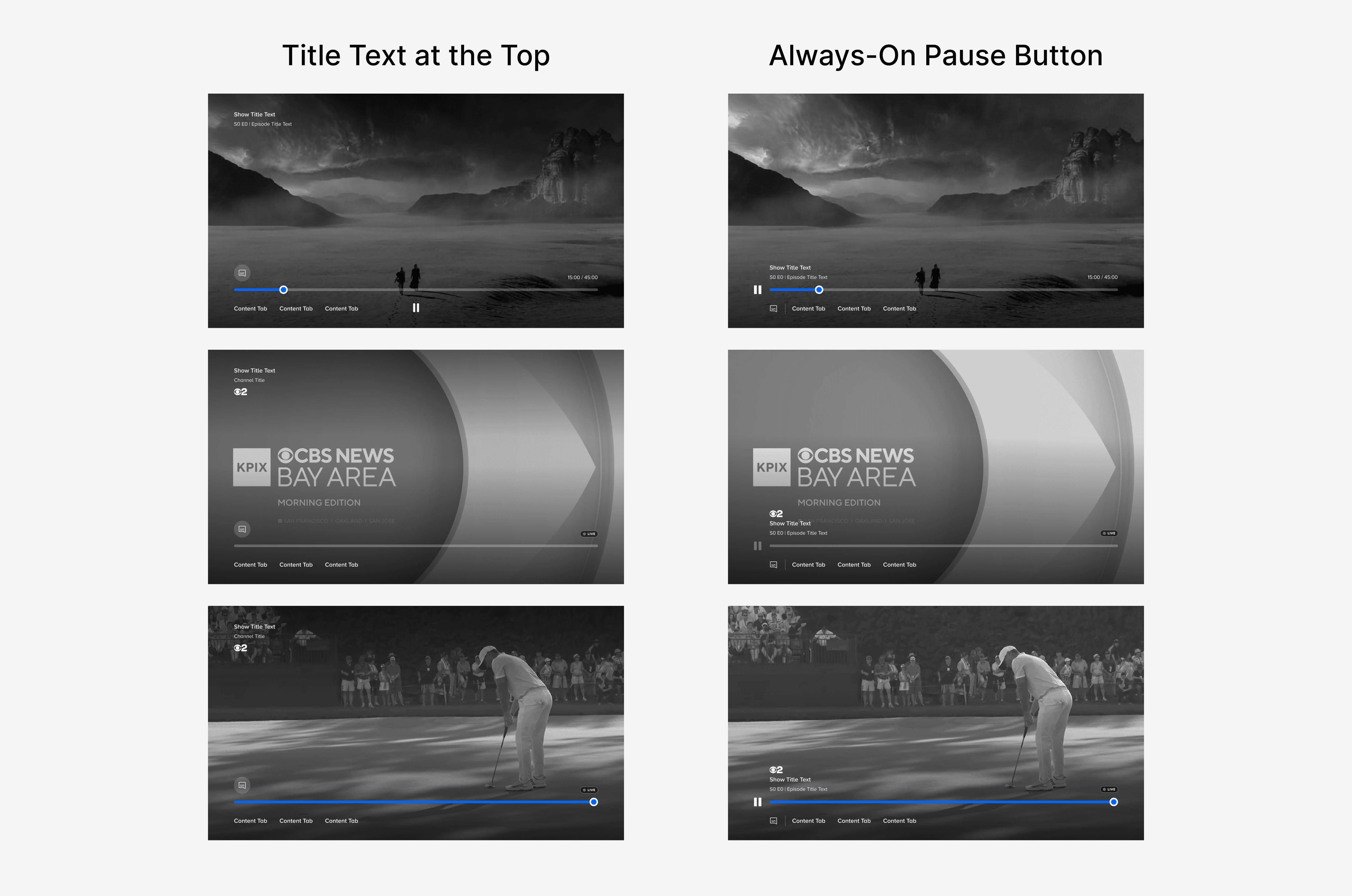
I designed a variety of player layouts during ideation, testing what could allow scaling of future feature additions while maintaining clarity for the user.
The challenge: What often worked for VOD, didn’t exactly translate well to Live TV.
For example, a Pause button that’s always on-screen could be helpful, but dedicating space for it becomes a problem when the Pause button isn’t needed for Live TV. Showing it in a disabled state could further introduce confusion (“I see a pause icon…but why aren't I able to pause this Live TV stream?”).
UI elements on the video player typically need a gradient beneath it — if we have elements at the top and bottom of the screen, that introduces a “tunneling” effect where the content is obstructed from both the top and bottom when player controls are brought up.
These explorations ultimately led me to move forward with a bottom-consolidated layout. It brings focus to one area, so the user can scan what they need, and quickly move on.
Q&A #2
How did you solve for modularity?
A few elements needed easy swap-outs; for example, we needed space to easily surface channel logos for Live TV and Showtime logos for Showtime content, without compromising the structure. I dedicated space above the content title to the logos; this way, the layout stays the same with or without it.
Shortcuts were consolidated to the right. This allowed ample space for future shortcut additions, while also being accessible with one-click of the Up arrow button.

Q&A #3
Why the "tabs" approach for in-player browse?
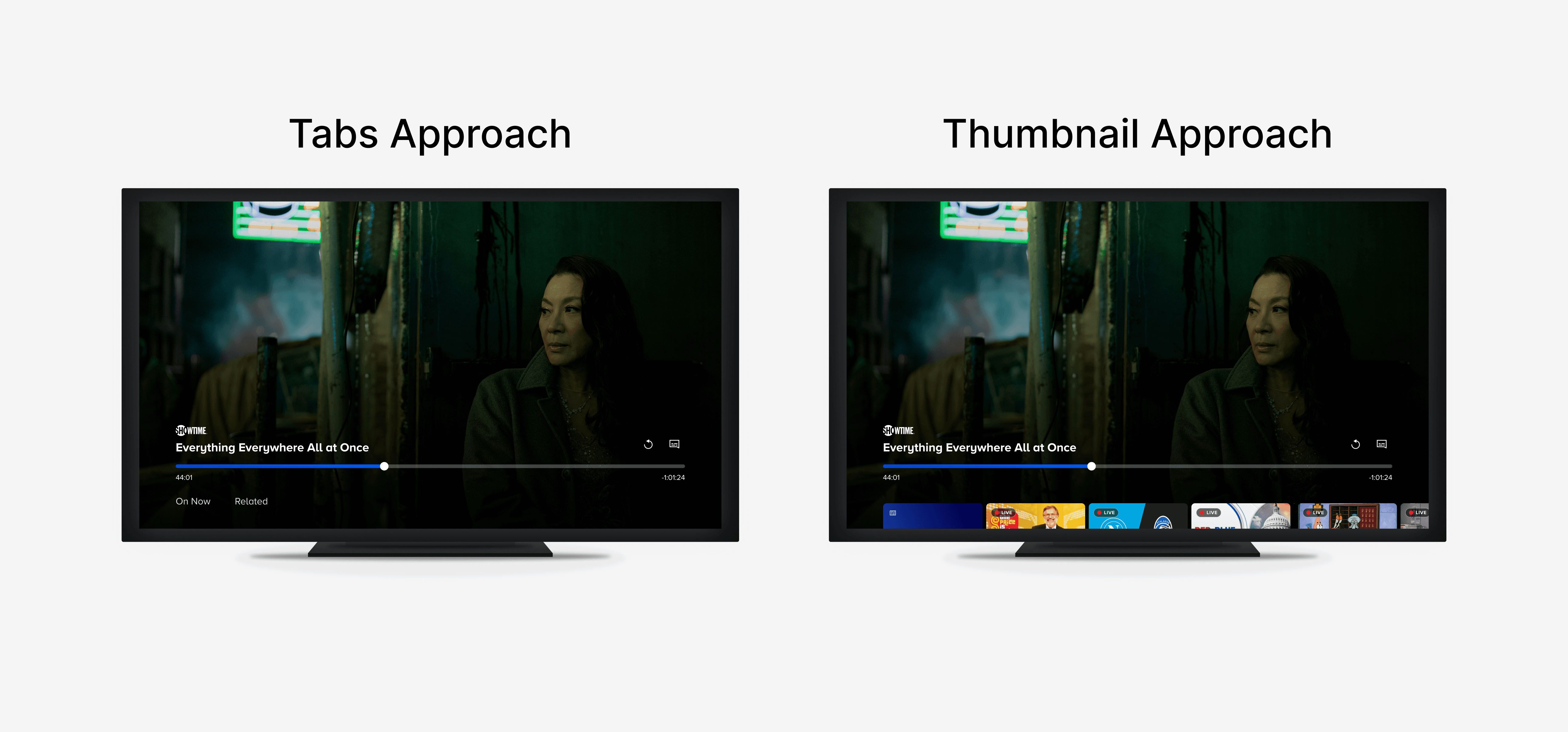
We came to a crossroads here. There were two viable options at this point: Use the Navigational Tabs component already in place within our app, or peek content thumbnails a little to indicate there’s more below.
During this initial redesign, Paramount+ aligned itself as a premium VOD viewing experience, with the additional perk of Live TV content. Having thumbnails peek could obstruct and add noise to the playback experience, so we moved forward with the Navigational Tabs approach. It had the added benefit of being a pattern the user already recognizes.
Q&A #4
How did you navigate designing for 4 OTT platforms?
I worked with developer leads for each platform to learn about their specific platform constraints. As an example, Smart TV had the most platform-level constraints, so certain design decisions had to be deprecated. Animations for bringing the carousels into view had to be removed for Smart TV.
VALIDATION
Post-launch research insights
Shortly after the redesign launched, the UX Research team ran moderated interviews with Roku users to test their understanding of the redesigned player, and test their reactions to the in-player content browsing section.
I built the prototype flows used in the sessions and observed the moderated tests firsthand.
Insight #1 — Users found consolidated controls easy to use with the remote
Playback actions like pause, play, fast forward, and rewind were immediately accessible and easy-to-understand for test participants.
Insight #2 — Power users immediately recognized and used the discovery
48% of Roku users immediately recognized the tabs within the video player. 22% of daily Paramount+ users on Roku had seen and utilized these tabs for checking out content.
Insight #3 — In-player browse added to the perceived value of the discovery tabs
69% of surveyed users found in‑player content valuable, especially the "Related" carousel. They found it useful near the end of a series, or when a show wasn’t holding their interest.
“I think the new tabs have made my experience watching Paramount+ so much more easier, as it showcases all the Live content available to stream. This has made navigating through the channels easier for me."
— Test participant

The Figma prototype I provided to the UX Research team.
IMPACT
How this video player continued to evolve
The unified video player became the foundation that unlocked future roadmap features. The carousel beneath the scrubber enabled features like showing highlight clips from a Live Sports game, right in the midst of a live game. It also unlocked crucial features for NFL streams, like an HDR/SDR video quality toggle. The consolidated bottom‑region layout also gave future designers a clear, scalable canvas: new features could slot into the existing structure, without having to rethink where controls should live.
REFLECTION
What I learned, and what I'd do differently
This was my first foray into a large-scale, multi-platform redesign. Building rapport with the developers was incredibly helpful for learning the intricacies of platform constraints. Had I moved forward without talking to them, we could have dealt with critical issues later on, especially near the handoff phase.
If I could do one thing differently, it would have been to conduct some quick usability testing myself on certain debated design questions. For example, I was at a crossroads with the Tabs vs. Thumbnails approach. I could have more easily settled a design debate by drafting a usability test in Maze.
I took this lesson to heart and applied it to my Promo Reels case study, where I used quick usability testing to settle another design debate encountered there.